








A Technical Review of 5 Common Graphic Design Tools
Writer :By: Admin
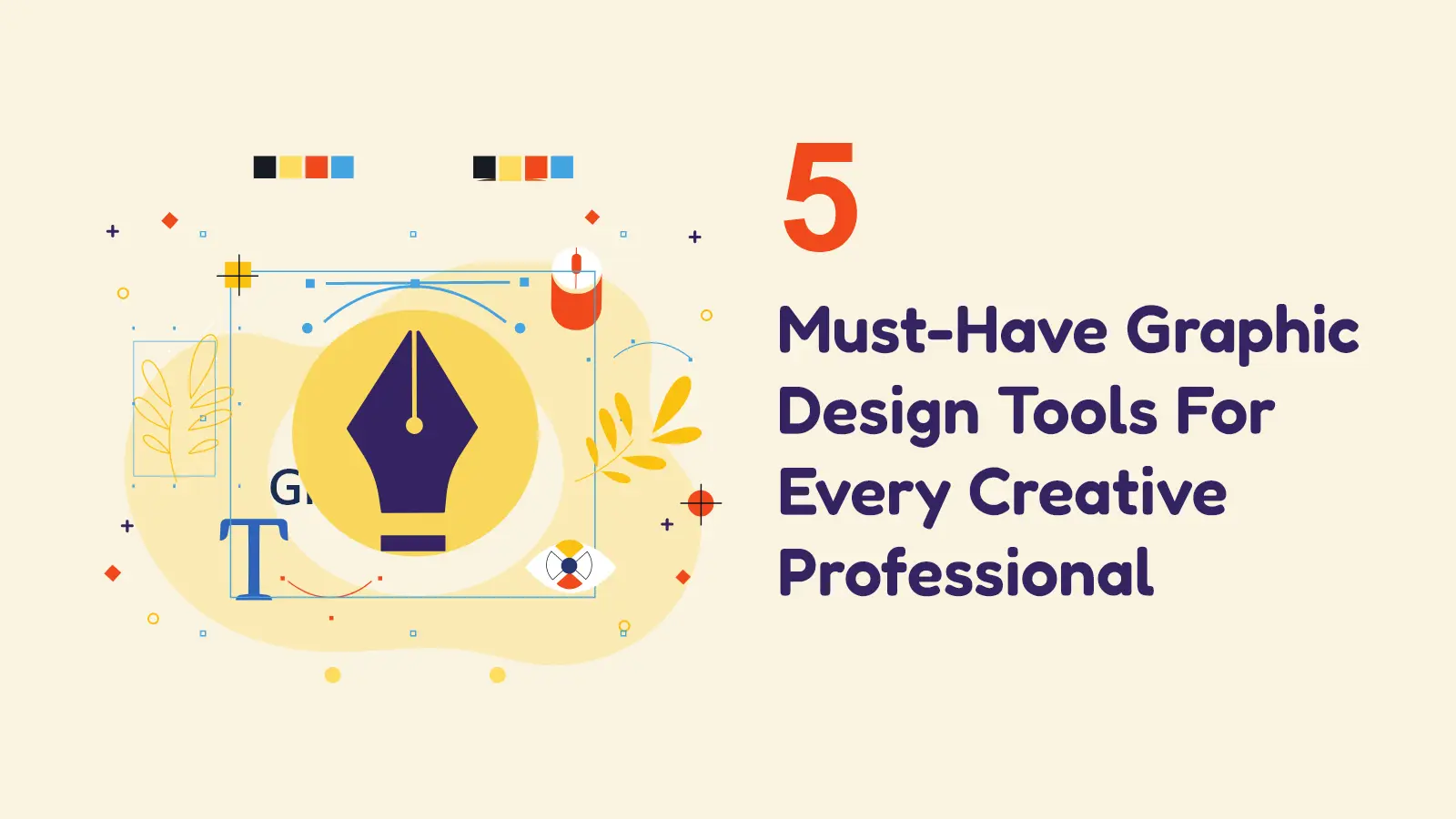
The right graphic design tool depends on the technical requirements of the task. A tool optimised for print media is a poor fit for interactive UI design. This review compares five common applications, focusing on their underlying technology, primary use cases and the trade-offs each one presents for a development team.
1. Adobe Photoshop: Raster image manipulation
Photoshop is a raster graphics editor, meaning it works on a fixed grid of pixels. This makes it suitable for creating or editing detailed, photorealistic images, textures and digital paintings. Its system of layers, masks and adjustment filters allows for complex, non-destructive compositing. For software projects, you would use it for manipulating photographic assets, creating detailed textures for game development or mocking up a static visual concept of a user interface.
The trade-off is that raster images do not scale without losing quality, which makes Photoshop a poor choice for creating logos, icons or other UI elements that must be displayed crisply at various sizes. The files are often large and the application is resource-intensive.
2. Adobe Illustrator: Vector graphics creation
Illustrator is a vector graphics editor. Instead of pixels, it uses mathematical equations to define lines, points and curves. The primary benefit is that its output can be scaled to any size, from a tiny favicon to a large billboard, with no loss of quality. Its pen tool creates paths using Bézier curves, giving you precise control over shapes. This makes it the standard for creating logos, icons and complex illustrations intended for use in multiple contexts, such as SVG files in a web application.
The main trade-off is its learning curve. Mastering the pen tool and its pathfinder operations requires practice. It is not designed for editing pixel-based images, so any photo manipulation or texturing work is better handled elsewhere.
3. Sketch: A focused UI/UX design application
Sketch is a vector-based application built specifically for designing user interfaces for web and mobile applications. Its feature set is focused on this task, with artboards for managing multiple screens, symbols for creating reusable components and styles for maintaining consistency. This focus makes it a direct and efficient tool for creating wireframes, mockups and interactive prototypes. Its plugin architecture allows for extending its capabilities with third-party tools for version control or developer handoff.
The most significant trade-off is that Sketch is a native macOS application. This excludes any team members using Windows or Linux from editing files and creates a dependency on a single operating system. Its real-time collaboration features are also less integrated than cloud-native alternatives.
4. Figma: Browser-based collaborative design
Figma is a vector-based design tool that runs in a web browser. Its main distinction is its real-time, multi-user collaboration, which allows designers, developers and project managers to view and edit the same file simultaneously. This architecture simplifies the process of creating and maintaining a design system, building interactive prototypes and handing off design specifications to developers, who can inspect elements directly in their browser. It is platform-agnostic, running on any system with a modern web browser.
The trade-off is its dependency on an internet connection for full functionality. While it has some offline capabilities, its core collaborative strength is lost. Performance can also become a factor on machines with limited memory or when working with very large files containing thousands of layers.
5. Canva: Template-driven design for non-designers
Canva is a web-based tool that enables users with no formal design training to create graphical assets. It operates on a model of templates, pre-built elements and a drag-and-drop interface. Its primary use case is for marketing and social media teams who need to produce on-brand content like banners, presentations or social posts without engaging a designer for every task. You can set up brand kits with specific colours, logos and fonts to maintain consistency.
The trade-off is a lack of granular control. You cannot use it for complex, original vector illustration or for designing a component-based UI system from scratch. It simplifies the design process by limiting options, making it unsuitable for professional UI/UX or branding projects that require custom solutions.
Conclusion
Your choice of tool is a technical decision based on project needs. For pixel-specific work, use a raster editor like Photoshop. For scalable graphics like icons and logos, use a vector editor like Illustrator. For UI design, the choice is between Sketch's focused macOS environment and Figma's cross-platform, collaborative model. For enabling non-designers, Canva provides a controlled, template-based environment. There is no single 'best' tool, only the most appropriate one for the job's constraints.